

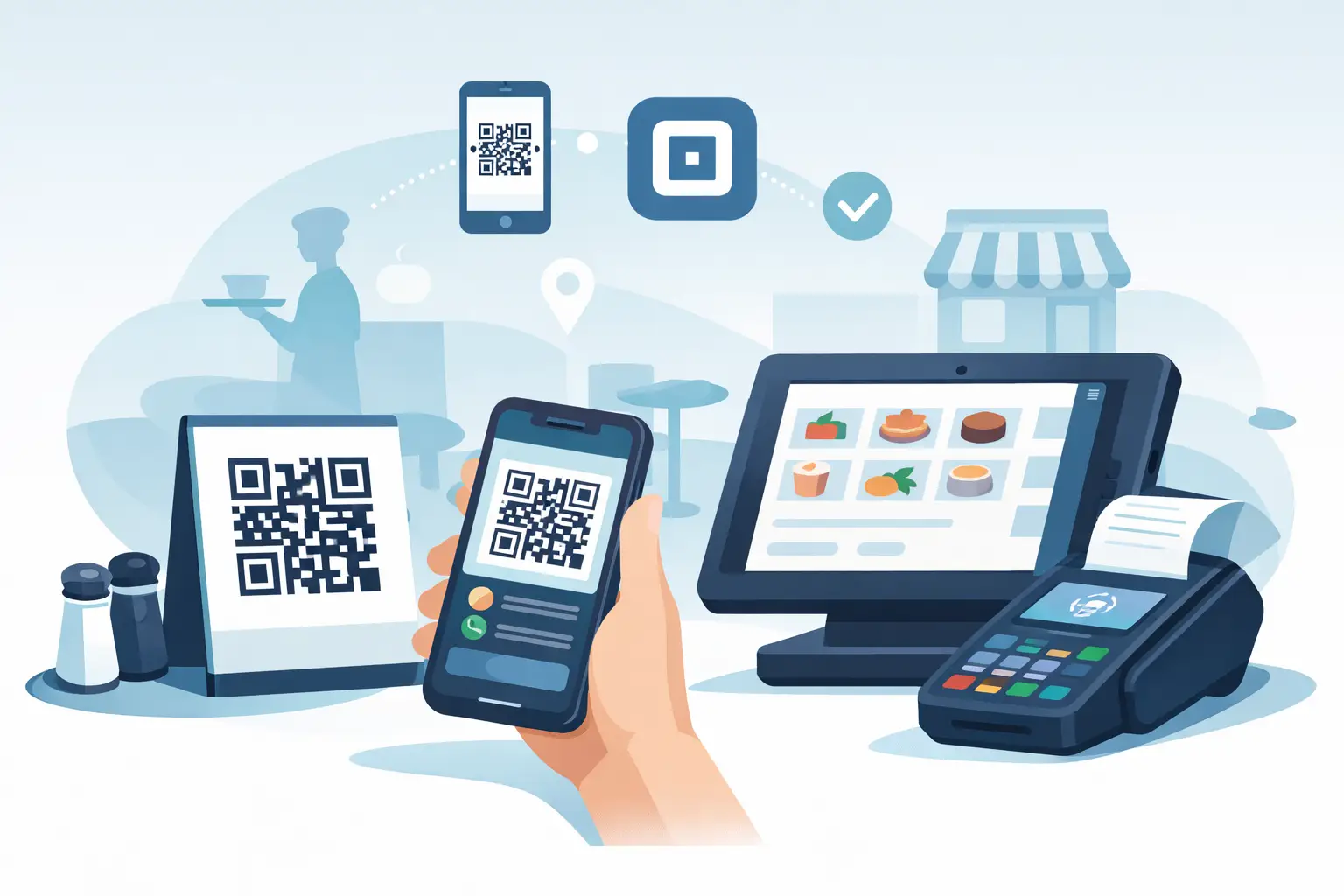
A printed QR code can take pressure off your counter fast. Put it on a table tent, a trailer window, or a sign at a busy event, and customers can start ordering without waiting for staff to walk them through the process. If you’re looking up how to set up qr code ordering square, you’re probably trying to move orders faster with less friction and no extra hardware.
Square can handle basic QR code ordering, but the setup and fit depend on how you sell. A coffee counter with stable WiFi has different needs than a food truck at a fair, a popup bar at a private event, or a regulated seller who cannot afford account issues. That’s the real question here – not just how to turn it on, but whether the setup matches your operation.
How to set up QR code ordering Square offers
Square’s QR ordering is usually tied to online ordering, self-serve ordering, or payment links. The exact path can vary based on the products you’re using, but the general setup is straightforward. You create or confirm your item catalog, connect those items to your online ordering flow, generate an order page or payment page, and then turn that page into a QR code customers can scan.
Before you print anything, clean up your catalog. Item names should be short and obvious. Modifiers need to make sense. Prices should be current. If customers are scanning a code and ordering on their own, there is no cashier standing there to explain what “Combo A” means or why one size is missing. QR ordering lives or dies on clarity.
Start with your menu or item catalog
Inside Square, make sure every sellable item is active, priced correctly, and assigned to the right category. If you sell food or drinks, add photos only if they help the customer decide faster. If you sell event-based items or limited inventory, be careful with products that can sell out mid-shift.
This part matters more than most operators expect. A messy catalog creates slow ordering, refund requests, and line backups at pickup. A clean one speeds up every order after the first scan.
Set up online ordering or checkout pages
Next, you need a customer-facing page. For restaurants and similar setups, that may be Square Online ordering. For simpler use cases, it may be a checkout link or payment page. Your goal is to create one destination that the QR code sends people to.
If you want table-based ordering, you’ll likely need separate codes for separate tables, pickup zones, or service areas. If you’re running one line and one pickup window, a single ordering page may be enough. If you’re operating a larger floor, different zones can help keep fulfillment organized.
Generate the QR code
Once your ordering page is live, generate a QR code that points to that page. Test it on both iPhone and Android before you print anything. Then test it again using weak cell service, because that is where a lot of “working” systems fall apart.
Print large enough for fast scanning. Glossy signs can create glare. Tiny codes slow people down. If your customers are ordering outdoors, at night, or through a service window, those details matter.
Decide how orders will be fulfilled
This is where setup becomes operations. If a customer scans, orders, and pays, where does that order land? Who sees it? How do they know when it is ready? How does the customer know where to stand, when to wait, or when to move?
Square can process the order. That does not automatically mean your handoff flow is dialed in. For a small operation, the simplest version often works best: one QR code, one menu, one pickup point, and one clear instruction after checkout.
Where Square QR ordering works well
If you run a straightforward menu, have solid internet, and sell in a stable environment, Square’s QR ordering can be good enough. Counter-service restaurants, coffee shops, concession setups, and some retail scenarios can get value from it quickly.
The upside is familiar setup, a known interface, and relatively fast deployment if you are already inside the Square ecosystem. If your customers just need to scan, choose from a short list, pay, and wait for pickup, that can be plenty.
For operators with predictable hours and fixed locations, the trade-off is usually manageable. You may not need advanced routing, offline ordering support, or specialized workflows. In that case, the simple route can save time.
Where QR ordering on Square starts to break down
The problem is not that Square cannot generate a QR code. The problem is that many operators need more than a code linked to a checkout page.
If you sell in a mobile setting, internet reliability becomes a real operational issue. At a food truck, festival booth, fireworks tent, or remote venue, a customer may be able to scan the code but still hit delays when the connection gets weak. That creates the worst kind of customer experience – a system that looks self-serve until it stalls.
If you sell in a regulated category, the bigger issue is platform fit. Plenty of operators learn this the hard way. You can build out a workflow, train staff, print signs, and start moving volume, only to find the platform was never built for your business in the first place.
There is also the question of channel control. A QR code is not just a payment shortcut. It is part of your whole ordering system. If your inventory, online ordering, counter checkout, and event selling all live in separate tools, staff spend the day patching things together instead of selling.
What to check before you commit to the setup
If you’re comparing options, don’t just ask whether the QR code works. Ask whether the full ordering flow works under pressure.
Start with connectivity. If you lose WiFi or have weak cell service, what happens to the order? Then look at hardware. Can you run the system on the phone or tablet you already own, or are you adding more gear to an already cramped setup?
Next, think about inventory. If you are selling limited quantities, seasonal items, or high-turn products, your QR ordering setup needs to reflect live availability. Nothing frustrates customers faster than ordering something you no longer have.
Finally, look at risk. Some businesses can use mainstream tools with no issue. Others are always one review away from an account problem, a freeze, or a support loop that burns a weekend. If that sounds familiar, it is not a QR code problem. It is a platform fit problem.
A better setup for operators who need more flexibility
If you can run Square, you can run a platform like OtterOrder. The difference is what happens after that first scan. Instead of treating QR ordering like a side feature, the system is built around operators who need one dashboard for QR orders, counter checkout, tap-to-order, self-service kiosk flows, and branded online ordering.
That matters when you are selling in the real world, not a perfect demo environment. A food truck can take orders on the same devices it already owns. A popup bar can move guests through faster without adding proprietary hardware. A fireworks stand or FFL can use a sales platform built for the realities of regulated selling instead of hoping a general-purpose tool keeps working.
The practical advantage is speed. You are not trying to duct-tape together one system for online orders, another for checkout, and another for inventory. You set up the menu, publish the ordering flow, print the code, and start taking orders in a way that fits how you already operate.
The simplest way to get QR ordering right
Keep the customer path short. Scan, choose, pay, pick up. The more taps, decisions, and redirects you add, the more abandoned orders you create.
Keep the staff path even shorter. Orders should arrive in one place. Inventory should stay current. Payment should be easy to accept whether you’re online, offline, indoors, or parked in the middle of an event field.
And keep your platform choice honest. If Square fits your business, use it. If your business is mobile, regulated, event-driven, or regularly off the grid, don’t force a basic setup to do a bigger job than it was built for. The best QR ordering system is the one that still works when the line gets long and the pressure goes up.